前言,老實說呢,我很懶得寫這篇,因為之前的電腦 win 10 跑 wsl or cmder 基本上都很順,
windows 對照 vim 快速操作技巧 最近又回來用 windows 覺得賭爛 , 筆記一下操作 , 應該還要寫個 emacs 的方式才對畢竟 terminal 常常用 , 有空再搞ctrl + z 復原 uctrl + y 復原前的狀態 ctrl + rctrl + g 移動到行號 :5ctrl + ← 往左移動一整個單字 bctrl + → 往右移動一整個單字 wctrl + shift + ← 往左選取一整個單字 vbctrl + shift + → 往右選取一整個單字 vehome 移動到行頭 ^end 移動到行尾 $shift + home 目前位置選到行頭 v^shift + end 目前位置選到行尾 v$ctrl + backspace 刪除一個單字 , 中文的話就是刪除到空白為止 dawctrl + home 移動到文件最頂端 ggctrl + end 移動到文件最尾端 Gctrl + ↑ 往上捲 ctrl + ectrl + ↓ 往下捲 ctrl + yctrl + shift + ↑ 將此行往上移動 :m-2ctrl + shift + ↓ 將此行往下移動 :m+1
windows 對照 terminal 快速操作技巧 end 往前刪除一個字 ctrl + hdelete 刪除目前游標的字 ctrl + d
← 往左移動一個字 ctrl + b→ 往右移動一個字 ctrl + f
ctrl + ← 往左移動一個單字 alt + bctrl + → 往右移動一個單字 alt + f
ctrl + shift + ← + delete or ctrl + backspace 往左刪除一個單字 ctrl + wctrl + shift + → + delete or ctrl + → + backspace 往右刪除一個單字 alt + d
shift + end + delete 刪除目前游標之後的所有字 ctrl + khome + shift + end + delete 刪除整行 ctrl + a ctrl + k
home 移動到開頭 ctrl + aend 移動到結尾 ctrl + e
ctrl + l 清除畫面
安裝 oh-my-bash 算是無腦安裝 oh-my-bash
1
2
cd $HOME bash -c "$(curl -fsSL https://raw.githubusercontent.com/ohmybash/oh-my-bash/master/tools/install.sh)"
預設會幫你蓋 .bashrc 我想要啟動時也直接啟動,所以把 .bashrc 裡面的設定直接複製到 .bash_profile , 若沒有這兩個檔案可以自己手動建立
Git bash for windows 設定 vim 在 git bash for windows 底下輸入以下命令
1
2
curl -fLo ~/.vim/autoload/plug.vim --create-dirs \ https://raw.githubusercontent.com/junegunn/vim-plug/master/plug.vim
搞定後會在 ~/.vim 目錄底下多出 autoload , plugged 資料夾跟 neovim 有點不太一樣
要 config vim 的設定檔則在以下路徑C:\Program Files\Git\etc\vimrc
安裝 :PlugInstall
1
2
3
~\.vim\plugged\vim-airline\autoload\airline\extensions\tabline\buffers.vim let s:number_map = { '0' : 0 , '1' : 1 , '2' : 2 , '3' : 3 , 4 : '4' , 5 : '5' , 6 : '6' , 7 : '7' , 8 : '8' , 9 : '9' }
解決 git bash for windows python 輸出有問題 nodejs 應該也會有這種類似的狀況,解法就是要用 winpty 把 windows 的 exe 指令給包一層 參考不錯的說明
1
2
3
4
5
6
cd ~ vim ~/.bashrc #加入內容 alias python='winpty python' alias pip='winpty pip' source ~/.bashrc
check vim support python 這個 python support 在 git for windows 的 vim 底下一定是沒 support 的,又雷得不要不要的
1
2
3
4
vim --version | grep "+python" :echo has('python3') :echo has('python') return 1 即可
解決 vim 編輯檔案時忘了加上 sudo 造成 readonly 的問題 這問題困擾滿久的 , 有時候編輯一堆內容才發現忘了加 sudo , 今天無意中看到老外說明
Narrow to region 最近無意中發現 emacs 大師說過的 Narrow to region vim 版 , 就抓來用看看 , 發現還滿有用的
安裝 安裝老樣子在 init.vim or vimrc 加上這行
接著
複習 split window 要用 narrow to region 需要些 split window 基本知識才好用 , 我平時不太常用 split window 功能所以複習下ctrl + w + wctrl + w + h/j/k/l 注意是小寫ctrl + w + H/J/K/L 注意是大寫
操作 裝好以後先把想要變成 Narrow to region 的部分選起來 , 也就是進入到 visual mode , 然後輸入 :NRctrl + w + H
詳細操作如下 , 可以看他 github
:NW - Open the current visual window in a new narrowed window
:WR - (In the narrowed window) write the changes back to the original buffer.
:NRV - Open the narrowed window for the region that was last visually selected.
:NUD - (In a unified diff) open the selected diff in 2 Narrowed windows
:NRP - Mark a region for a Multi narrowed window
:NRM - Create a new Multi narrowed window (after :NRP) - experimental!
大概可以這樣用 , 假設有個片段長這樣 , 想要修改 id 為 header , footer 的內容
1
2
3
4
5
6
7
8
9
10
11
12
13
14
15
16
17
18
19
20
21
22
23
<div id="header" class="container"> <div class="row"> <div class="col-md-4">col</div> <div class="col-md-4">col</div> <div class="col-md-4">col</div> </div> </div> <div id="mid" class="container"> <div class="row"> <div class="col-md-6">col</div> <div class="col-md-6">col</div> </div> </div> <div id="footer" class="container"> <div class="row"> <div class="col-md-3">col</div> <div class="col-md-3">col</div> <div class="col-md-3">col</div> <div class="col-md-3">col</div> </div> </div>
他會給你 header 及 footer 片端像是這樣
1
2
3
4
5
6
7
8
9
10
11
12
13
14
15
16
17
18
19
20
<!-- Start NrrwRgn1 buffer: .\bootstrap4.html --> <div id="header" class="container"> <div class="row"> <div class="col-md-4">col</div> <div class="col-md-4">col</div> <div class="col-md-4">col</div> </div> </div> <!-- End NrrwRgn1 buffer: .\bootstrap4.html --> <!-- Start NrrwRgn2 buffer: .\bootstrap4.html --> <div id="footer" class="container"> <div class="row"> <div class="col-md-3">col</div> <div class="col-md-3">col</div> <div class="col-md-3">col</div> <div class="col-md-3">col</div> </div> </div> <!-- End NrrwRgn2 buffer: .\bootstrap4.html -->
這時候就可以下 replace 命令把 col 內容換成 xxxx 之類的操作 , 然後不會動到中間 id 為 mid 的內容:%s/>col</>xxxx<
:NRS - Enable Syncing the buffer content back (default on)
:NRN - Disable Syncing the buffer content back
:NRL - Reselect the last selected region and open it again in a narrowed window
Tmux 安裝 萬事起頭難,參考還不錯的大陸人設定 教學
1
2
3
4
5
6
git clone https://github.com/xnng/bash.git cd bash explorer . 分別複製 tmux/bin 底下所有檔案到 C:\Program Files\Git\usr\bin tmux/share 底下所有檔案到 C:\Program Files\Git\usr\share
應該也可以直接下 command 不過需要 windows admin 權限,可以安裝 gsudo
在 $HOME 底下新增以下 .tmux.conf 檔案參考自 參考自印度仔
1
2
set -g default-terminal "xterm-256color" set -ga terminal-overrides ",*256col*:Tc"
vimrc
1
2
3
if (has("termguicolors")) set termguicolors endif
Bash for Windows tmux vim 中文亂碼設定及真色設定 在 git bash for windows 開啟 options => text => Locale zh_TW => Character set UTF-8
萬一遇到簡體中文造成亂碼可在 vimrc 加入以下內容
1
2
3
set fileencodings=utf-8,gb2312,gb18030,gbk,ucs-bom,cp936,latin1 set enc=utf8 set fencs=utf8,gbk,gb2312,gb18030
最終 vim 設定檔 注意如果是用 git bash for windows 這些要放在預設的那段下面,另外 utf8 要註解掉
1
2
3
4
5
6
7
8
9
10
11
12
13
14
15
16
17
18
19
20
21
22
23
24
25
26
27
28
29
30
31
32
33
34
35
36
37
38
39
40
41
42
43
44
45
46
47
48
49
50
51
52
53
54
55
56
57
58
59
60
61
62
63
64
65
66
67
68
69
70
71
72
73
74
75
76
77
78
79
80
81
82
83
84
85
86
87
88
89
90
91
92
93
94
95
96
97
98
99
100
101
102
103
104
105
106
107
108
109
110
111
112
113
114
115
116
117
118
119
120
121
122
123
" 注意如果是用 git bash for windows 這些要放在預設的那段下面 call plug#begin('~/.vim/plugged') " Plug 'joshdick/onedark.vim' " Plug 'iCyMind/NeoSolarized' Plug 'vim-airline/vim-airline' Plug 'vim-airline/vim-airline-themes' " 佈景主題 Plug 'ayu-theme/ayu-vim' " 檔案樹 Plug 'scrooloose/nerdtree' " 會亂碼 " Plug 'ryanoasis/vim-devicons' " emmet Plug 'mattn/emmet-vim' " 註解外掛 Plug 'tpope/vim-commentary' " 快速替換開頭結尾 Plug 'tpope/vim-surround' " 多重游標 Plug 'mg979/vim-visual-multi', {'branch': 'master'} " 縮排線 " 無效? " Plug 'Yggdroot/indentLine' " 縮排線 Plug 'nathanaelkane/vim-indent-guides' " Error " live server " Plug 'turbio/bracey.vim' " css 顏色 Plug 'ap/vim-css-color' " 自動括號 Plug 'jiangmiao/auto-pairs' call plug#end() " 設定編碼 set encoding=UTF-8 set fileformat=unix " 行號 set nu set relativenumber " 剪貼設定 set clipboard=unnamed " 設定cursor顏色 " set cursorcolumn " set cursorline " tab寬度 syntax enable set smartindent set tabstop=4 set shiftwidth=4 " set expandtab " 設定字體 " set guifont=Fira\ Code:h12 " ariline " 開啟tab樣式 let g:airline#extensions#tabline#enabled = 1 " 設定NERDTree nnoremap <silent> <C-k><C-B> :NERDTreeToggle<CR> autocmd bufenter * if (winnr("$") == 1 && exists("b:NERDTree") && b:NERDTree.isTabTree()) | q | endif " 設定 emmet " let g:user_emmet_install_global = 0 autocmd FileType html,css EmmetInstall imap <expr> <tab> emmet#expandAbbrIntelligent("\<tab>") " 設定縮排顏色 " let g:indentLine_setColors = 0 " let g:indentLine_color_term = 239 " let g:indentLine_char_list = ['|', '¦', '┆', '┊'] " 設定縮排第二種 let g:indent_guides_enable_on_vim_startup = 1 hi IndentGuidesOdd ctermbg=white hi IndentGuidesEven ctermbg=lightgrey " 設定自動括號 let g:AutoPairsFlyMode = 1 " 設定佈景主題 set termguicolors " enable true colors support let ayucolor="light" " for light version of theme " let ayucolor="mirage" " for mirage version of theme " let ayucolor="dark" " for dark version of theme colorscheme ayu" " " tmux true color if (has("termguicolors")) set termguicolors endif "esc inoremap ,, <Esc> nnoremap ,, <Esc> map ,so :so ~/.vimrc <CR>
最終 Tmux 設定 1 2 3 4 5 6 7 8 9 10 11 12 13 14 15 16 17 18 19 20 21 22 23 24 25 26 27 28 29 30 31 32 33 34 35 36 37 38 39 40 41 42 43 44 45 46 47 48 49 50 51 52 53 54 55 56 57 58 59 60 61 62 63 64 65 66 67 68 69 70 71 72 ### rebind hotkey # prefix setting (screen-like) set -g prefix C-a unbind C-b bind C-a send-prefix # reload config without killing server bind R source-file ~/.tmux.conf \; display-message "Config reloaded..." # "|" splits the current window vertically, and "-" splits it horizontally unbind % bind | split-window -h bind - split-window -v # Pane navigation (vim-like) bind h select-pane -L bind j select-pane -D bind k select-pane -U bind l select-pane -R # Pane resizing bind -r Left resize-pane -L 4 bind -r Down resize-pane -D 4 bind -r Up resize-pane -U 4 bind -r Right resize-pane -R 4 ### other optimization # set the shell you like (zsh, "which zsh" to find the path) # set -g default-command /bin/zsh # set -g default-shell /bin/zsh # use UTF8 #set -g utf8 #set-window-option -g utf8 on # display things in 256 colors set -g default-terminal "screen-256color" #set -g default-terminal "xterm-256color" #set -g default-terminal "xterm" #啟動真色 set -g default-terminal "xterm-256color" set -ga terminal-overrides ",*256col*:Tc" # mouse is great! set-option -g mouse on # history size set -g history-limit 10000 # fix delay set -g escape-time 0 # 0 is too far set -g base-index 1 setw -g pane-base-index 1 # stop auto renaming setw -g automatic-rename off set-option -g allow-rename off # renumber windows sequentially after closing set -g renumber-windows on # window notifications; display activity on other window setw -g monitor-activity on set -g visual-activity on
後記的靈異事件 這個事件是由某天懶得貼上格式發生的直接把 set paste 寫在 .vimrc 裡面發生悲劇了 ,INSERT PASET
windows 底下使用 neovim chocolatey 下載 nvim
將 vimrc 複製到以下路徑 , 並修改為 init.vimC:\Users\YourName\AppData\Local\nvim
下載 vim-plug
1 2 iwr -useb https://raw.githubusercontent.com/junegunn/vim-plug /master/plug.vim |` ni "$ (@($env:XDG_DATA_HOME , $env:LOCALAPPDATA )[$null -eq $env:XDG_DATA_HOME ])/nvim-data/site/autoload/plug.vim" -Force
開啟 nvim 安裝 plugin
無腦的 neovim 管理版本工具 有時候 neovim 更新還滿麻煩的 , 無意中找到 bob , 乾脆就直接用它來管理版本吧
預設路徑在此 C:\Users\YourName\AppData\Local\bob\v0.8.1\nvim-win64\bin , 記得加入到環境變數就搞定了
ubuntu 設定 vim 下載外掛管理員
1 curl -fLo ~/.vim/autoload/plug.vim --create-dirs https://raw.githubusercontent.com/junegunn/vim-plug/master/plug.vim
建立 .vimrc
登入 vim 安裝外掛
或是直接在 terminal vim +PlugInstall
在 root 使用者安裝
1 2 3 4 5 6 sudo -i cd /root curl -fLo ~/.vim/autoload/plug.vim --create-dirs https://raw.githubusercontent.com/junegunn/vim-plug/master/plug.vim touch .vimrc vim :PlugInstall
選取與移動的實用技巧 啪啪神器 matchit vim 內建的 matchit 參考這篇 vim-matchup ~/AppData/Local/nvim/init.vim
1 Plug 'andymass/vim-matchup'
打開 vim 輸入
他好像是會認附檔名 , 所以附檔名要正確才會生效 , 感覺比較有用的增強功能應該是 z% , 經典功能 %%% 一樣可以在頭尾快速移動
往外延伸選取 vim-expand-region 可以參考這個
老樣子無腦安裝在 vimrc 加上以下這段 , 這邊用 neovim ~/AppData/Local/nvim/init.vim
1 Plug 'terryma/vim-expand-region'
打開 vim 輸入
接著 map 成 emacs 大師教的即可 , 他官方好像還有教可以自定義 expand 的行為 , 這裡就懶得設定了
1 2 map ,xx <Plug>(expand_region_expand) map ,zz <Plug>(expand_region_shrink)
縮排選取好幫手 vim-indent-object 可以參考這個
老樣子無腦安裝在 vimrc 加上以下這段 , 這邊用 neovim ~/AppData/Local/nvim/init.vim
1 Plug 'michaeljsmith/vim-indent-object'
打開 vim 輸入
接下來搭配這串 code 進行說明
1 2 3 4 5 6 7 8 9 admin: address: socket_address: { address: 127.0.0.1, port_value: 9901 } static_resources: listeners: - name: listener_0 address: socket_address: { address: 127.0.0.1, port_value: 10000 }
假設游標在 address 上 , 用 vii 可以選到以下兩行
1 2 address: socket_address: { address: 127.0.0.1, port_value: 9901 }
假設游標在 address 上 , 用 vai 可以選到以下三行 , 另外有個細節就是要搭配 o 使用可以移動到選取的頭尾- 這個符號會造成誤判 , 所以選的時候要慎用 , python 也是相同原理 , 總之就是個半殘的選法
1 2 3 4 admin: address: socket_address: { address: 127.0.0.1, port_value: 9901 }
使用 COC 補全 k8s yaml 因為在搞 docker + k8s , 需要編輯 yaml 檔 , 直接在 linux 上面沒有 auto complete 實在太噁心了這篇老外文章 , 之前好像沒用過 coc? 忘了?教學影片 真佛心
1 2 3 4 5 " Use release branch (Recommend) Plug 'neoclide/coc.nvim', {'branch': 'release'} " Or build from source code by use yarn: https://yarnpkg.com Plug 'neoclide/coc.nvim', {'do': 'yarn install --frozen-lockfile'}
接著輸入以下命令安裝
萬一 coc 炸 error 檢查看看自己有無安裝 python , 另外好像還要裝 nodejs 不過我機器上已經有了參考自老外解法
1 python3 -m pip install --user --upgrade pynvim
如果是用 ubuntu 需要先安裝 nodejs , 注意 nodejs 版本要 12.12 以上 , 小心不要直接用 apt-get install 有可能安裝到舊版 , 在 ubuntu 20.04 上 default 好像是 node 10?移除
1 2 curl -sL https://deb.nodesource.com/setup_14.x | sudo bash - sudo apt-get install -y nodejs
安裝 coc-yaml
萬一 coc 炸出這個 error 可能是 nodejs or python 沒安裝或是版本錯誤 , 請確認版本是否正確
1 client coc abnormal exit with: -1
接著照打開 CocConfig 編輯
使用 vim 的話 coc 路徑會在如下位置 ~/.vim/coc-settings.json~/AppData/Local/nvim/coc-settings.jsonctrl + n ctrl + p 上下移動補全的 menu 不過好像 vscode 的更好用一點
1 2 3 4 5 6 7 8 9 10 11 12 13 14 { "languageserver": { "golang": { "command": "gopls", "rootPatterns": ["go.mod"], "filetypes": ["go"] } }, "yaml.schemas": { "kubernetes": "/*.yaml" } }
安裝 zsh oh-my-zsh 及 powerline 參考 oh-my-zsh 官網
1 2 3 sudo apt-get install zsh sh -c "$(curl -fsSL https://raw.github.com/ohmyzsh/ohmyzsh/master/tools/install.sh)" sudo apt install powerline fonts-powerline
在 ubuntu 內挑選佈景
1 2 3 4 5 6 7 8 9 10 vim ~/.zshrc #比較不花俏的預設佈景 #ZSH_THEME="darkblood" #dracula #ZSH_THEME="dracula" #重新載入 source ~/.zshrc
因為 git for windows 上面預設的布景 dracula 用習慣了 , 所以就安裝看看
1 2 3 4 git clone https://github.com/dracula/zsh.git cd zsh cp dracula.zsh-theme ~/.oh-my-zsh/themes/. cp -r lib ~/.oh-my-zsh/themes/.
搞定布景後安裝 oh my zsh 的 plugin , 這裡參考大神 Victor 的設定zsh-autosuggestions zsh-completions zsh-syntax-highlighting
1 2 3 4 cd ~/.oh-my-zsh/custom/plugins git clone https://github.com/zsh-users/zsh-autosuggestions.git git clone https://github.com/zsh-users/zsh-completions.git git clone https://github.com/zsh-users/zsh-syntax-highlighting.git
接著找到 plugins 改成這樣
1 2 3 4 5 6 7 8 9 10 11 12 vim ~/.zshrc #plugins=( # git # zsh-autosuggestions # zsh-completions # zsh-syntax-highlighting # colored-man-pages #) source ~/.zshrc
為你的 cat 加上色彩 因為常常會用 cat 看些東東但是沒有語法高量可以考慮安裝 bat 讓操作舒服點
1 2 3 4 sudo apt install bat vim ~/.zshrc #加上 alias alias bat=batcat
裝 B 移動目錄神器 Ranger 筆記 安裝 ranger , 也可以參考這老外教學 , 也可以看下強國人影片
開啟 ranger 讓他自動建立資料夾
複製 ranger 的預設設定檔 template
1 ranger --copy-config=all
設定 ascii preview image 首先設定 scope.sh 找到這段把 img2txt 原本的註解開起來
1 2 3 4 5 6 7 8 vim ~/.config/ranger/scope.sh ## Image image/*) ## Preview as text conversion img2txt --gamma=0.6 --width="${PV_WIDTH}" -- "${FILE_PATH}" && exit 4 exiftool "${FILE_PATH}" && exit 5 exit 1;;
接著設定 ~/.config/ranger/rc.conf
1 2 3 set preview_images false set use_preview_script true set preview_script ~/.config/ranger/scope.sh
設定 x11 preview image 注意只有在 ubuntu 有 gui 的機器有用 , 用 ssh 應該回 ascii 模式 , 先安裝 x11 相關工具及 ueberzug
1 2 3 4 5 6 7 sudo apt update sudo apt upgrade sudo apt-get install -y libx11-dev sudo apt-get install -y xorg openbox sudo apt-get install -y x11proto-xext-dev sudo apt-get install -y libxext-dev pip3 install ueberzug
設定 ~/.config/ranger/rc.conf
1 2 set preview_images true set preview_images_method ueberzug
萬一炸 WARNING 設定以下即可
1 2 #echo 'export PATH=~/.local/bin:$PATH' >> ~/.bashrc echo 'export PATH=~/.local/bin:$PATH' >> ~/.zshrc
最後預覽一下正妹
1 crul https://instagram.frmq3-1.fna.fbcdn.net/v/t51.2885-15/sh0.08/e35/s640x640/169486234_744729692910070_7136376512717038837_n.jpg?tp=1&_nc_ht=instagram.frmq3-1.fna.fbcdn.net&_nc_cat=110&_nc_ohc=jehk2TKowmEAX8DDWGK&edm=AABBvjUBAAAA&ccb=7-4&oh=95e49414292080950b57f70c1e6d1c09&oe=60C92944&_nc_sid=83d603 --output nono.png
在 ubuntu 上撰寫 .net core 5 今天在 ubuntu 20.04 linux 上安裝 .net core 5 莫名其妙炸了個奇怪的 error
1 E: The repository 'https://packages.microsoft.com/ubuntu/18.04/prod focal Release' does not have a Release file
查了下發現多了錯誤的版本在上面 , 可能之前沒睡飽下錯指令所致微軟官方
1 2 3 4 5 6 7 8 9 10 11 12 13 14 15 16 17 18 19 sudo vim /etc/apt/sources.list #deb https://packages.microsoft.com/ubuntu/18.04/prod focal main # deb-src https://packages.microsoft.com/ubuntu/18.04/prod focal main wget https://packages.microsoft.com/config/ubuntu/20.04/packages-microsoft-prod.deb -O packages-microsoft-prod.deb sudo dpkg -i packages-microsoft-prod.deb rm packages-microsoft-prod.deb #sdk sudo apt-get update; \ sudo apt-get install -y apt-transport-https && \ sudo apt-get update && \ sudo apt-get install -y dotnet-sdk-5.0 #run time sudo apt-get update; \ sudo apt-get install -y apt-transport-https && \ sudo apt-get update && \ sudo apt-get install -y aspnetcore-runtime-5.0
主要參考這篇(https://github.com/OmniSharp/Omnisharp-vim )
1 2 3 4 5 vim ~/.vimrc call plug#begin('~/.vim/plugged') #for csharp Plug 'OmniSharp/omnisharp-vim'
接著在 vim 執行以下命令安裝 OmniSharp , 搞定後首次他會問我們要不要安裝 OmniSharp-Roslyn server 選 Yes 即可
接著在 Ubuntu 上面玩看看 .net core , 可以通過 dotnet xxx –help 來看詳細命令 , 這邊就直接蓋個 console 看看
1 2 3 4 5 6 7 8 9 10 mkdir helloworld cd helloworld dotnet new --list #Console Application console [C#],F#,VB Common/Console #Class library classlib [C#],F#,VB Common/Library #Worker Service worker [C#],F# Common/Worker/Web #MSTest Test Project mstest [C#],F#,VB Test/MSTest #NUnit 3 Test Item nunit-test [C#],F#,VB Test/NUnit #......
蓋個 console 看看幫我們建了什麼
1 2 3 dotnet new console ls helloworld.csproj obj Program.cs
試著弄個 helloworld , 體驗一下 , 只能說連維護都不是很好用
1 2 3 4 5 6 7 8 9 10 11 12 13 14 15 16 17 using System; using System.IO; namespace helloworld { class Program { static void Main(string[] args) { Console.WriteLine("HelloWorld"); //StreamWriter file = new StreamWriter("test.txt"); //file.WriteLine("Hello world"); //file.Close(); } } }
最後跑看看是否成功寫入 , 結論就是裝 B 跟拿來看看 code 還可以用 , 實際開發還是用 IDE 比較有效率
老樣子包個 Dockerfile 來玩看看 , 參考官方
1 2 3 4 5 6 7 8 9 10 11 12 13 14 15 16 17 18 19 # https://hub.docker.com/_/microsoft-dotnet FROM mcr.microsoft.com/dotnet/sdk:5.0 AS build WORKDIR /source # copy csproj and restore as distinct layers COPY *.sln . COPY helloworld/*.csproj ./helloworld/ RUN dotnet restore # copy everything else and build app COPY helloworld/. ./helloworld/ WORKDIR /source/helloworld RUN dotnet publish -c release -o /app --no-restore # final stage/image FROM mcr.microsoft.com/dotnet/aspnet:5.0 WORKDIR /app COPY --from=build /app ./ ENTRYPOINT ["dotnet", "helloworld.dll"]
試跑看看 docker , 注意指定的 image 在最後面 , 另外如果用 -d 參數的話 , 這種單純的 console 是沒辦法跑起來的 , 需要切換 entrypoint
1 2 3 4 5 6 7 8 docker run -it hello-console --name hello-console #HelloWorld #切換進入點 , 並且用 attach 進去看看 docker run -d -it --name hello-console --entrypoint sh hello-console docker attach 341 ls #helloworld helloworld.deps.json helloworld.dll helloworld.pdb helloworld.runtimeconfig.json
fzf 安裝 navi 相依於 fzf , 所以先安裝 fzf , 注意最好用新一點的版本 , 不然 navi 會炸這個 error invalid preview window layout: up:2:nohiddenctrl + [ 來代替 or ctrl + q 也可以ctrl + n ctrl +p 以外還可以用 ctrl + j ctrl + k 上下移動
1 2 3 4 5 6 sudo apt update sudo apt upgrade git clone --depth 1 https://github.com/junegunn/fzf.git ~/.fzf ~/.fzf/install source ~/.bashrc
安裝 navi 參考官方
1 2 3 4 5 6 7 cd ~ sudo git clone --depth 1 https://github.com/denisidoro/navi cd navi sudo git fetch --all --tags sudo apt-get install cargo sudo git checkout tags/v2.15.0 sudo make install
都安裝好後可以自己蓋個檔案來玩看看 , 注意副檔名要是 .cheat , 可以把自己常用的一些 script 寫進來方便用% 符號是 大類 # 是小類 , 還滿直覺的
1 2 3 4 5 6 7 8 9 10 11 12 13 14 15 16 17 18 19 20 21 22 23 24 25 26 27 28 29 30 31 32 33 34 35 36 37 38 39 40 41 42 43 44 45 46 47 48 49 50 51 52 53 54 55 56 57 58 59 60 61 62 63 64 65 66 67 68 69 70 71 72 73 74 75 76 77 78 79 80 81 82 83 84 85 86 87 88 89 90 91 92 93 94 95 96 97 98 99 100 101 102 103 104 105 106 107 108 109 110 111 112 113 % docker 掛狗大全 # docker container 幫助 docker container --help # docker 幫助串 grep docker --help | grep --color container # docker 列出 container docker container ls # docker 列出 image docker image ls # docker helloworld docker run hello-world # docker 列出停止的 container docker container ls -a # docker 列出停止的 container docker container ls -a # docker 跑 busybox docker run -it busybox sh # docker 跑 dotnet core docker run -it --rm mcr.microsoft.com/dotnet/sdk dotnet # docker 跑 nginx docker run --name nginx -d -p 8080:80 nginx # docker 查歷史 docker history 22d # docker 查 log docker logs 418 # docker 查 container 詳細訊息 docker inspect 418 # docker 拉 hello-world docker pull hello-world # docker 刪除沒用的 container docker container prune # docker 附加到 container 上 docker attach 7d3 # docker 啟動停止的容器 docker start 723 # docker 跳進容器 (bash) docker exec -it 23d /bin/bash # docker 死亡指令 (注意不要亂用 機器會爆炸) echo "docker run -v /:/data busybox rm -rf /" # docker 拉 imagemagick docker pull dpokidov/imagemagick # docker 轉換圖片為 ico docker run -v ~/imgs:/imgs dpokidov/imagemagick -background transparent /imgs/kuai.png -define icon:auto-resize=16,24,32,48,64,72,96,128,258 /imgs/kuai.ico # docker 建立 volume docker volume create test # docker 執行 imagemagick 在 volume 上 docker run -v test:imgs -d -it --entrypoint-/bin/bash dpokidov/imagemagick # docker 查網路 docker network ls # docker 讓網路跑在 host 上 docker run -d --network=host nginx # docker 網路跑橋接 docker run -d -p 8080:80 --network=bridge nginx # docker 查 container 內的 ip docker inspect 345 | grep -i ipaddress # docker container 網路用其他 container 的網路 docker run -it --net=container:345 nginx # docker 查 pid docker inspect 2f3 | grep -i pid # nsenter 看 docker 網路 sudo nsenter -t 12342 -n # docker 看 netns sudo ls /var/run/docker/netns # docker 打標籤 tag docker tag dotnet-cowsay:latest dotnet-cowsay:latest # docker 打標籤 tag remote docker tag dotnet-cowsay:latest 172.18.22.33/dotnet-cowsay:latest # docker login harbor docker login http://10.1.2.123 --username admin --password Harbor12345 # docker commit docker commit -m "cowsay" -c "ENV PATH=$PATH:/usr/games" 1234asfw dotnet5-new-cowsay # docker 搭配 jq 輸出 raw ls $(docker inspect test | jq -r ".[0].Mountpoint") # docker 持續監控 log docker logs s12 -f -t
接著讀取自己的檔案看看 , 如果按了 enter 會直接把 command 執行在 terminal
1 2 3 4 5 navi --path . navi --path . --print docker 掛狗大全 docker image 用法 docker image ls ⠀ docker 掛狗大全 docker 用法 docker container ls ⠀
tldr ubuntu 20 基本上無腦安裝 , 老實說這個訊息量確實少了很多 , 有好有壞
1 2 3 sudo apt-get install tldr #測看看 docker 用法 tldr docker
安裝 thefuck https://github.com/nvbn/thefuck
1 2 3 4 5 6 7 8 9 10 11 12 13 14 sudo apt-get install -y pip pip install thefuck vim ~/.bashrc PATH=$PATH:/home/vagrant/.local/bin source ~/.bashrc fuck #Seems like fuck alias isn't configured! #Please put eval "$(thefuck --alias)" in your ~/.bashrc and apply changes with source ~/.bashrc or restart your shell. #Or run fuck a second time to configure it automatically. #More details - https://github.com/nvbn/thefuck#manual-installation source ~/.bashrc
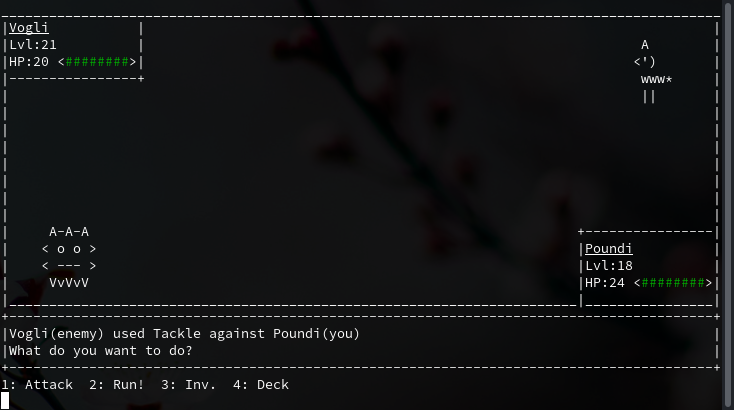
Pokete 人生苦悶 , 尤其值班時要守在電腦前 , 這時候玩點類寶可夢散散心 Pokete 坦白說還不錯玩 XD
其他好玩咚咚 https://github.com/agarrharr/awesome-cli-apps https://github.com/alebcay/awesome-shell https://vim.reversed.top/
fullconfig 安裝
1 2 3 winget install Neovim.Neovim New-Item -ItemType Directory -Force "$env:LOCALAPPDATA\nvim" cd $env:LOCALAPPDATA\nvim
建立 C:\Users\yourname\AppData\Local\nvim\init.lua
1 2 3 4 5 6 7 8 9 10 11 12 13 14 15 16 17 18 19 20 21 22 23 24 25 26 27 28 29 30 31 32 33 34 35 36 37 38 39 40 41 42 43 44 45 46 47 48 49 50 51 52 53 54 55 56 57 58 59 60 61 62 63 64 65 66 67 68 69 70 71 72 73 74 75 76 77 78 79 80 81 82 83 84 85 86 87 88 89 90 91 92 93 94 95 96 97 98 99 100 101 102 103 104 105 106 107 108 109 110 111 112 113 114 115 116 117 118 119 120 121 122 123 124 125 126 127 128 129 130 131 132 133 134 135 136 137 138 139 140 141 142 143 144 145 146 147 148 149 150 151 152 153 154 155 156 157 158 159 -- Neovim config converted from VSCodeVim settings. -- Put this file at: -- Windows: %LOCALAPPDATA%\nvim\init.lua -- macOS/Linux: ~/.config/nvim/init.lua vim.g.mapleader = "," vim.g.maplocalleader = "," local opt = vim.opt local keymap = vim.keymap.set opt.clipboard = "unnamedplus" opt.hlsearch = true opt.incsearch = true opt.ignorecase = true opt.smartcase = true opt.number = true opt.relativenumber = false opt.termguicolors = true opt.mouse = "a" opt.updatetime = 250 opt.timeoutlen = 500 opt.splitright = true opt.splitbelow = true opt.expandtab = true opt.shiftwidth = 2 opt.tabstop = 2 opt.smartindent = true -- Do not let Neovim change the terminal cursor shape. This keeps Windows -- Terminal's configured cursorShape, and avoids a block cursor after exit. opt.guicursor = "" -- GUI clients may honor these. Terminal Neovim uses the terminal font. opt.guifont = "FiraCode Nerd Font:h14,Fira Code:h14" -- If matchit is available, use it for better % matching. pcall(vim.cmd, "packadd matchit") -- If Dracula is installed, use it. Otherwise keep Neovim's default theme. pcall(vim.cmd.colorscheme, "dracula") local silent = { silent = true } local noremap_silent = { noremap = true, silent = true } local function copy_to_clipboard(text) vim.fn.setreg("+", text) vim.notify("Copied: " .. text) end local function copy_absolute_path() copy_to_clipboard(vim.fn.expand("%:p")) end local function copy_relative_path() copy_to_clipboard(vim.fn.expand("%")) end local function grep_prompt() local pattern = vim.fn.input("Find in files: ") if pattern == "" then return end vim.cmd("silent vimgrep /" .. vim.fn.escape(pattern, "/\\") .. "/gj **/*") vim.cmd("copen") end local function lsp_rename() if vim.lsp.buf and vim.lsp.buf.rename then vim.lsp.buf.rename() end end local function lsp_symbols() if vim.lsp.buf and vim.lsp.buf.document_symbol then vim.lsp.buf.document_symbol() end end local function open_recent_file() vim.ui.select(vim.v.oldfiles, { prompt = "Open recent file:" }, function(choice) if choice then vim.cmd.edit(vim.fn.fnameescape(choice)) end end) end local function open_buffer() local buffers = vim.tbl_filter(function(buf) return vim.api.nvim_buf_is_loaded(buf) and vim.api.nvim_buf_get_name(buf) ~= "" end, vim.api.nvim_list_bufs()) vim.ui.select(buffers, { prompt = "Open buffer:", format_item = function(buf) return vim.fn.fnamemodify(vim.api.nvim_buf_get_name(buf), ":~:.") end, }, function(choice) if choice then vim.api.nvim_set_current_buf(choice) end end) end -- Insert mode mappings. keymap("i", "<leader><leader>", "<Esc>", noremap_silent) keymap("i", "z;", "<Esc>$a;", noremap_silent) keymap("i", "zh", "<Esc>^i", noremap_silent) keymap("i", "zl", "<Esc>$a", noremap_silent) keymap("i", "z,", "<Esc>$a,", noremap_silent) -- Normal mode mappings. keymap("n", "<leader><leader>", "<Esc>", noremap_silent) keymap("n", "<leader><space>", "<leader><leader><leader>bdw", noremap_silent) keymap("n", "<leader>rv", lsp_rename, silent) keymap("n", "<leader>qq", grep_prompt, silent) keymap("n", "<leader>fp", copy_absolute_path, silent) keymap("n", "<leader>fn", copy_relative_path, silent) keymap("n", "<leader>tp", "<Cmd>botright split | terminal<CR>", noremap_silent) keymap("n", "<leader>xm", ":", { noremap = true }) keymap("n", "<leader>ci", "gcc", { remap = true, silent = true }) keymap("n", "<leader>xs", "<Cmd>write<CR>", noremap_silent) keymap("n", "<leader>ss", "/", { noremap = true }) keymap("n", "<leader>xf", ":edit ", { noremap = true }) keymap("n", "<leader>xk", "<Cmd>bdelete<CR>", noremap_silent) keymap("n", "<leader>rr", open_recent_file, silent) keymap("n", "<leader>kk", open_buffer, silent) keymap("n", "<leader>ii", lsp_symbols, silent) keymap("n", "<leader>x1", "<Cmd>only<CR>", noremap_silent) keymap("n", "<leader>x3", "<Cmd>vsplit<CR>", noremap_silent) keymap("n", "<leader>x2", "<Cmd>split<CR>", noremap_silent) keymap("n", "<leader>x4", "<Cmd>vsplit | split | wincmd l | split | wincmd h<CR>", noremap_silent) keymap("n", "<leader>x0", "<Cmd>close<CR>", noremap_silent) keymap("n", "<leader>xz", "<Cmd>botright split | terminal<CR>", noremap_silent) keymap("n", "<leader>ff", "<Cmd>only<CR>", noremap_silent) keymap("n", "<leader>wh", "<C-w>h", noremap_silent) keymap("n", "<leader>wj", "<C-w>j", noremap_silent) keymap("n", "<leader>wk", "<C-w>k", noremap_silent) keymap("n", "<leader>wl", "<C-w>l", noremap_silent) keymap("n", "<leader>wq", "<Cmd>wq<CR>", noremap_silent) keymap("n", "zh", "^", noremap_silent) keymap("n", "zl", "$", noremap_silent) keymap("n", "z;", "$a;<Esc>", noremap_silent) keymap("n", "z,", "$a,<Esc>", noremap_silent) -- Visual mode mappings. keymap("x", "<leader><leader>", "<Esc>", noremap_silent) keymap("x", ";h", [[:s?^\(\s*\)+ '\([^']\+\)',*\s*$?\1\2?g<CR>]], noremap_silent) keymap("x", ";q", [[:s?^\(\s*\)\(.*\)\s*$?\1+ '\2'?<CR>]], noremap_silent) keymap("x", "<leader>ci", "gc", { remap = true, silent = true }) keymap("x", "<leader>aa", [["+y]], noremap_silent) keymap("x", "<leader>qq", grep_prompt, silent) keymap("x", "<leader>ss", "/", { noremap = true }) -- Removed VSCode-only or extension-only settings: -- easymotion, surround, smart select expand/shrink, activity/sidebar toggles, -- command palette UI, notebook UI, Live Server, Copilot, Material Icon Theme, -- VSCode CodeLens, and VSCode-specific terminal chord behavior.
解決光標退出變粗的問題, 把這段加在 powershell 最後面即可
1 2 3 4 5 6 7 8 9 10 11 $__oldPrompt = if (Test-Path Function:\prompt) { (Get-Command prompt).ScriptBlock } else { { "PS $($executionContext.SessionState.Path.CurrentLocation)> " } } function global:prompt { Write-Host -NoNewline "$([char]27)[6 q" & $__oldPrompt }